
Export your data
Download a zip of your whole workspace: people, channels, every message with threads and reactions, and files.
Your data is yours. The owner can download a complete copy of the workspace at any time. This page explains what’s in the export and how it’s laid out.
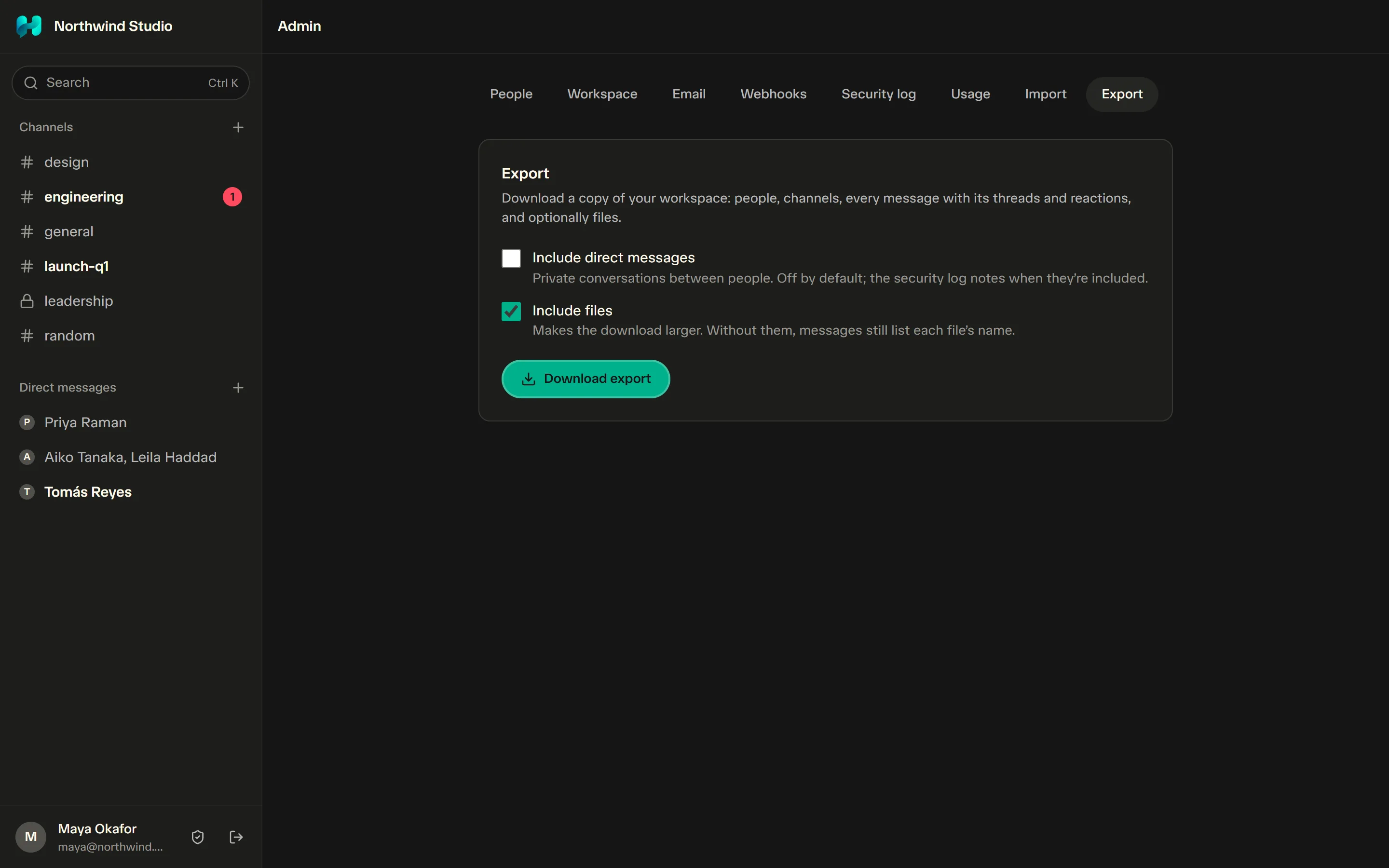
Download an export
- Open Admin › Export. Only the owner can export.
- Choose what to include:
- Include direct messages: private conversations between people. Off by default.
- Include files: on by default. It makes the download larger; without files, messages still list each file’s name.
- Select Download export and keep the page open.
Huddle collects everything and packs it into a zip in your browser, then downloads huddle-export- followed by the date and .zip. Select Stop to cancel.
Every export is recorded in the security log, including whether direct messages were part of it.
What’s in the zip (for the technically curious)
huddle-export.json
conversations/
  general.json
  design.json
  ...
files/
  01J...-brief.pdf
...huddle-export.jsonhas the workspace name and brand colour, everyone in the workspace (name, email, role and whether they’re active) and the list of conversations with their members and message counts.conversations/has one JSON file per conversation, named after the channel (direct messages are named by their kind and id). Each holds every message in order, with threads, reactions, edit and delete times, and the files attached.files/has the original files, each named with its id and its original name.
The format is marked "format": "huddle-export", "version": 1, so tools that read it can tell which layout they’re looking at.
Deleted messages
Deleted messages are in the export as entries with their time and position but no text, because Huddle removes the text when a message is deleted.