Install the app
Add Huddle to your phone's home screen or your computer's dock, and turn on notifications.
Huddle works in any web browser, and you can also install it like an app. It then opens in its own window, like your other apps, and can show notifications. There’s nothing to download from an app store.
On a computer
In Chrome or Edge:
- Open your Huddle address and sign in.
- Open Your settings (your name at the bottom of the sidebar).
- Under This device, select Install Huddle.
The button only appears when the browser offers installing. You can also use the install icon in the browser’s address bar.
On Android
- Open your Huddle address in Chrome and sign in.
- Open the browser menu and choose Install app or Add to Home screen. You can also use Install Huddle in Your settings.
On iPhone and iPad
- Open your Huddle address in Safari and sign in.
- Tap Share, then Add to Home Screen.
- Open Huddle from the new icon on your Home Screen.
Turn on notifications
Notifications are turned on for each device separately.
- Open Your settings.
- Under This device, switch on Notifications on this device and allow notifications when the browser asks.
- Select Send a test notification to check it works.
You’re notified when someone mentions you, sends you a direct message or replies in a thread you’re in. See Notifications to choose what reaches you.
If the browser says notifications are blocked, allow them in the site settings (the icon next to the address), then reload.
Offline
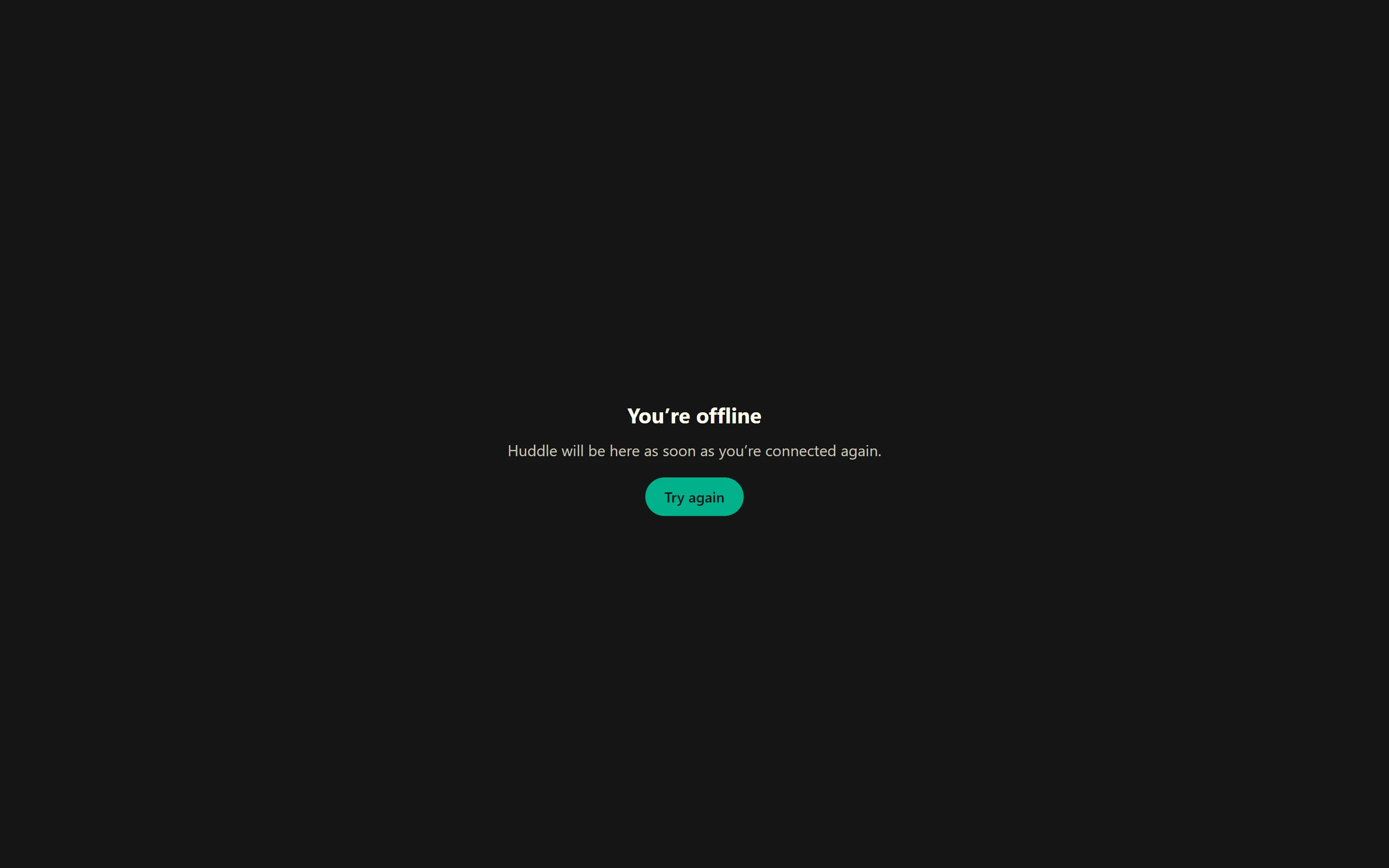
When there’s no connection, Huddle shows a short You’re offline page instead of the browser’s error. Select Try again once you’re back online. Huddle doesn’t keep a copy of your messages on the device.