
Messages
Write, format, mention, react to, edit and delete messages, and link to a single message.
This page covers everything about writing messages: formatting, mentions, reactions, editing and deleting.
Send a message
Type in the message box at the bottom of a conversation and press Enter. Shift+Enter starts a new line.
Messages appear for everyone in the conversation straight away, and you can see when someone is typing. If your connection drops, Huddle says Reconnecting… your messages will still send. and catches up when you’re back.
A message can be up to 8,000 characters. If you send a lot of messages very quickly (more than about 60 a minute), Huddle asks you to wait a moment.
Formatting
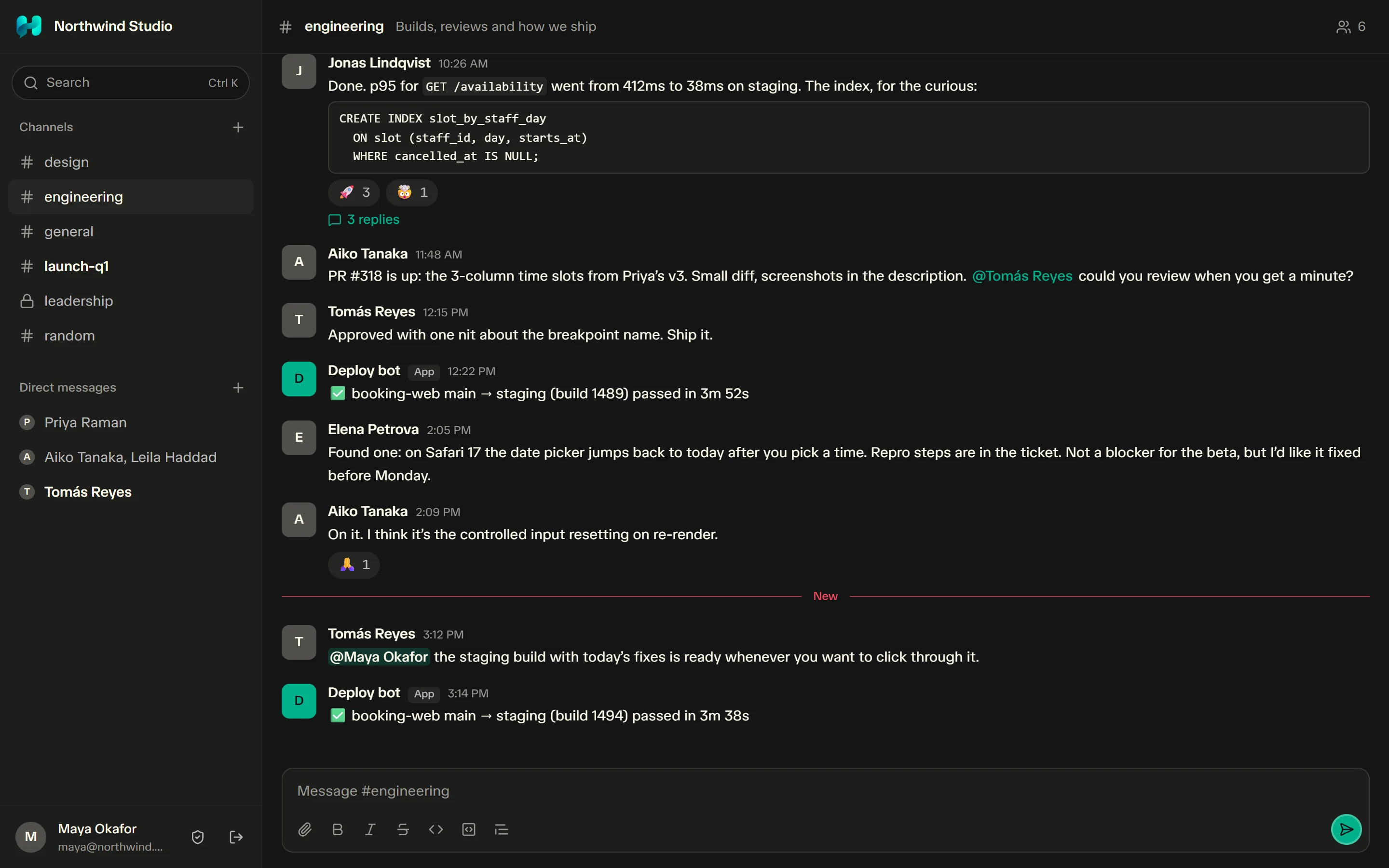
Use the formatting bar above the message box, or type the marks yourself:
| To get | Type | Shortcut |
|---|---|---|
| Bold | **bold** |
Ctrl+B |
| Italic | _italic_ |
Ctrl+I |
~~strike~~ |
||
Code |
`code` |
|
| A code block | three backticks before and after | |
| A quote | > at the start of a line |
Links that start with http:// or https:// become clickable automatically. Inside a code block, Enter adds a new line instead of sending.
Mentions
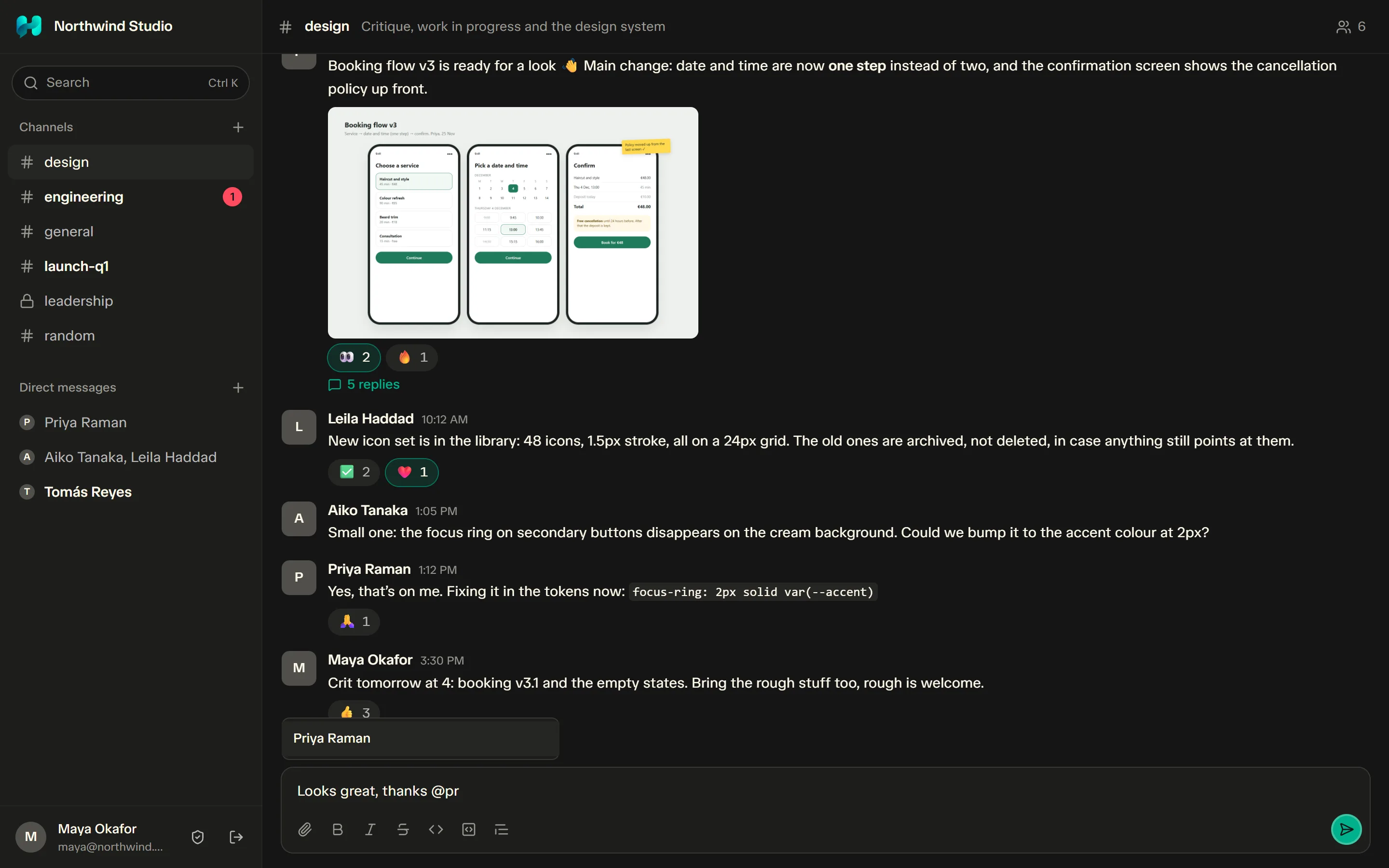
Type @ and start typing a name, then pick a person with the arrow keys and Enter or Tab.
@namenotifies that person, if they’re in the conversation.@channelnotifies everyone in the channel.@hereis offered as “Everyone online” and notifies the people in the channel.
Mentions show the person’s current name, so they stay right if someone changes their name. Mentioning someone who isn’t in a private channel does nothing and tells them nothing.
Reactions
Hover over a message (or move to it with the keyboard) and select Add reaction, then pick one of 👍 ❤️ 😂 🎉 👀 ✅. Select a reaction under a message to add yours too, or to take yours back. Hover over a reaction to see who reacted.
Edit a message
Hover over your message and select Edit, or press the Up arrow in an empty message box to edit your last message. Press Enter to save or Esc to cancel. Edited messages show (edited).
You can only edit your own messages. If you add a mention while editing, that person is notified once.
Delete a message
Hover over the message and select Delete, then confirm. You can delete your own messages; owners and admins can delete anyone’s.
The text is removed for everyone straight away. If the message had thread replies, a short This message was deleted. note stays so the thread still makes sense.
Link to a message
Every message has its own address: /c/ followed by the conversation id, then /m/ and the message id. Notifications and email summaries use these links to open the exact message.