
Search
Find messages, files, channels and people with Ctrl+K, limited to what you are allowed to see.
Search finds messages, files, channels and people across your workspace. This page explains how to search and how matching works.
Open search
Press Ctrl+K (Cmd+K on a Mac) anywhere in Huddle, or select Search at the top of the sidebar. Start typing: results appear as you go.
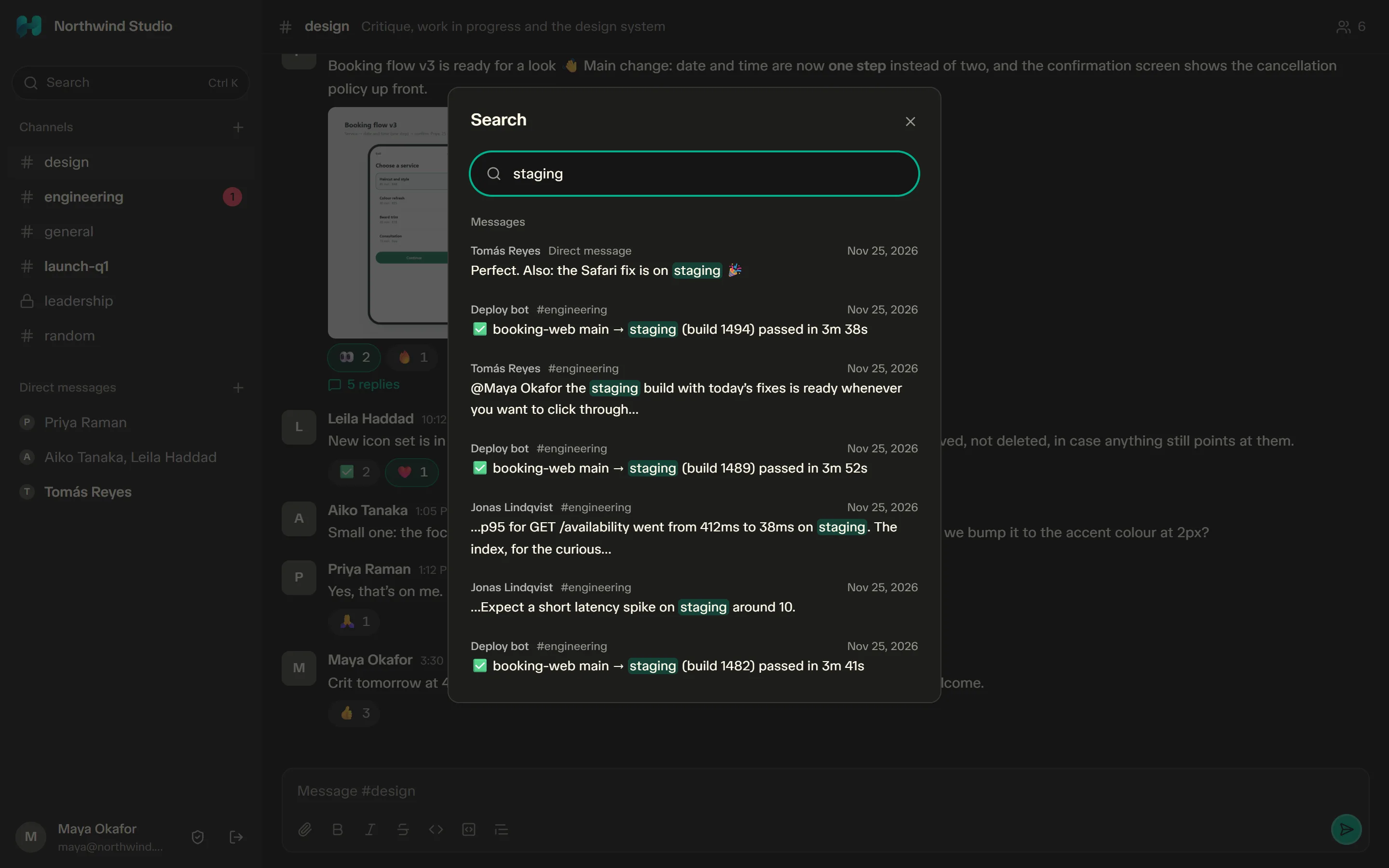
Results are grouped into:
- Channels whose name matches.
- People whose name matches.
- Messages, newest first, with the matching words highlighted.
- Files whose name matches.
Select a result to go straight to it. A channel opens the channel, a person opens your direct message with them, and a message opens its conversation, or its thread if it’s a reply.
How matching works
- Every word must match. invoice march finds messages containing both words.
- Endings are filled in. kitch finds kitchen, and deploy finds deployed.
- Punctuation and symbols are ignored, and case doesn’t matter.
- Up to eight words are used.
What you can find
Search only ever looks at what you can read:
- Conversations you’re a member of.
- Public channels, even ones you haven’t joined, unless you’re a guest.
- Never private channels or DMs you’re not in. They aren’t even counted.
Deleted messages, and files from deleted messages, never appear. Guests only find people they share a channel with.
More filters for developers
Behind the scenes, search can also narrow results to one conversation, one person, messages with files, or a range of dates. The app doesn’t have buttons for these yet; developers can use them through the API.